
Software
Microsoft Edge is more than just a browser—it’s a powerhouse for productivity, security, and speed. Whether you’re a power user or a casual surfer, these seven expert tips will transform your browsing experience, making every tab faster, safer, and simpler to manage.
Enable Immersive Reader for Focused Reading

Struggling to focus while reading long articles or research papers? Microsoft Edge’s Immersive Reader transforms cluttered web pages into a distraction-free, dyslexia-friendly experience with just one click. This AI-powered tool highlights text line by line, adjusts font size and spacing, and even offers text-to-speech for auditory learners.
Simply open any webpage, click the Immersive Reader icon in the address bar, and customize settings like font type (Segoe UI, Calibri, or dyslexia-friendly fonts), background color (light or dark mode), and line focus to reduce eye strain. The tool also translates text into over 100 languages, making it perfect for multilingual users.
Ideal for students studying dense textbooks or professionals analyzing reports, Immersive Reader turns overwhelming content into an accessible, engaging read. Give it a try—your eyes (and brain) will thank you! ✨
Use Collections to Organize Research Instantly
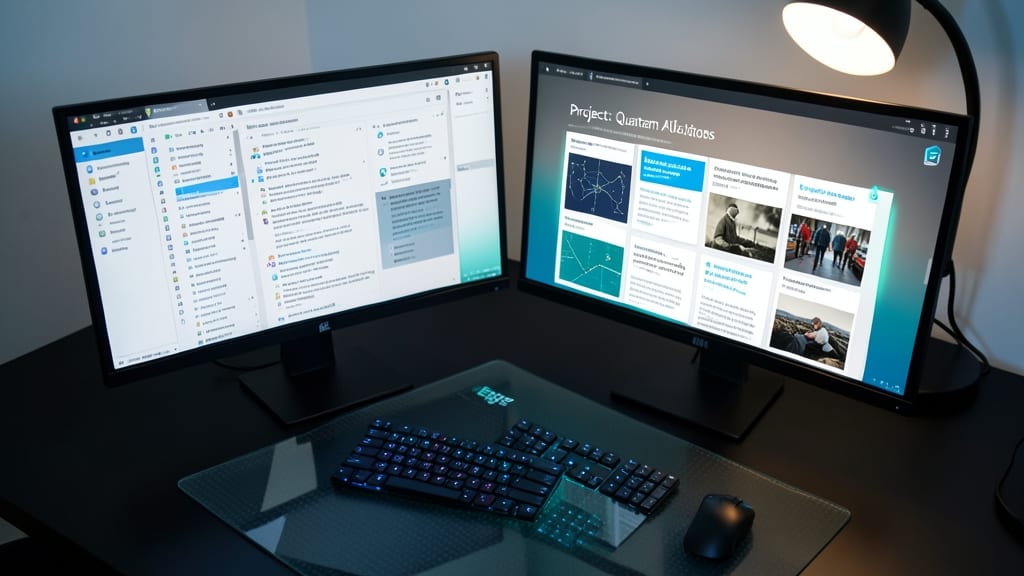
Drowning in tabs while researching? Microsoft Edge Collections turns chaos into clarity by letting you clip text, images, and links into visual boards that sync across your devices—no sticky notes or separate apps needed.
With zero-config setup, you can create collections in seconds by highlighting content and saving it to a digital board. The feature supports cross-device syncing (Windows, Mac, iOS, Android) and even lets you annotate clips with notes or tags. Whether you're compiling sources for a paper or saving inspiration for a project, everything stays organized in one place.
Perfect for students, researchers, or creatives, Collections replaces the hassle of juggling bookmarks, screenshots, and notes. Try it today and reclaim your digital workspace! ✨
Customize Startup Pages with News and Weather
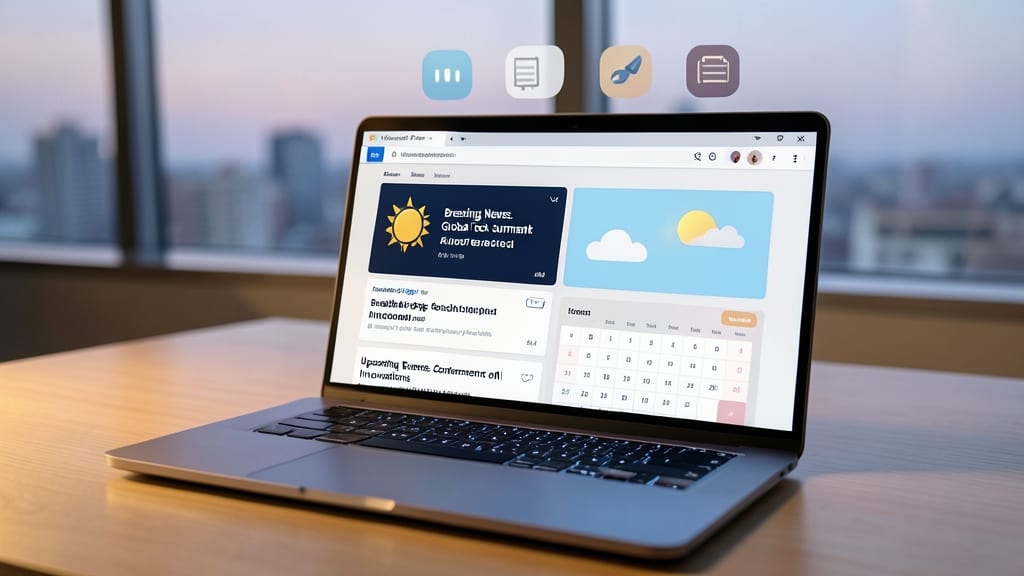
Tired of staring at a blank new tab every morning? Microsoft Edge’s Startup Pages feature lets you curate a personalized dashboard that loads instantly—no extra apps or logins required. Skip the clutter and jump straight into your day with the info that matters most.
Customize your startup page with live news feeds (CNN, BBC, or your favorite blogs), a weather widget (with 5-day forecasts), and even a to-do list (syncs with Microsoft To-Do). The setup takes minutes: just go to edge://start in the address bar, toggle on your preferred sources, and arrange them in a grid layout. No ads, no distractions—just the essentials.
Perfect for busy professionals, students, or anyone who wants to save 10+ minutes daily by avoiding separate weather apps or news sites. Whether you’re checking the forecast before your commute or reviewing your to-do list, this feature turns your new tab into a command center. ✨
Block Trackers with Privacy Dashboard
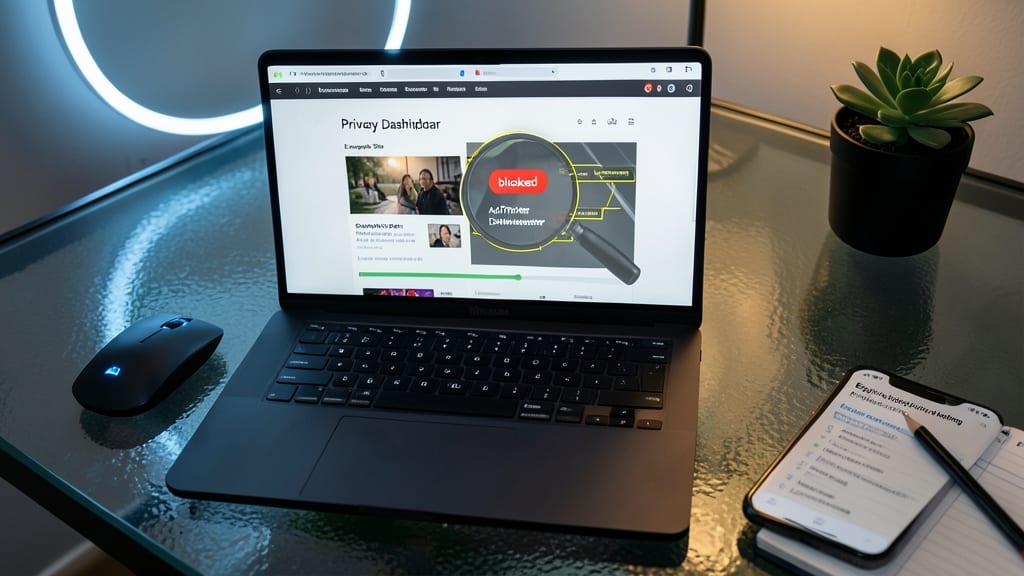
Worried about hidden trackers secretly collecting your data while browsing? Microsoft Edge’s Privacy Dashboard puts you in control with real-time tracker blocking—no extensions needed. It scans websites in the background, flagging suspicious scripts and giving you a clear breakdown of what’s being blocked.
Access it via Settings > Privacy, search, and services > Privacy Dashboard, where you’ll see a detailed report of blocked trackers categorized by type (ads, analytics, social media). The tool even shows you how much data would’ve been sent without protection. With zero-config setup, it works silently in the background, adapting to your browsing habits over time.
This is a must-use for anyone concerned about digital footprints—especially remote workers or journalists who handle sensitive information. Take back your privacy effortlessly. ✨
Speed Up Browsing with Vertical Tabs
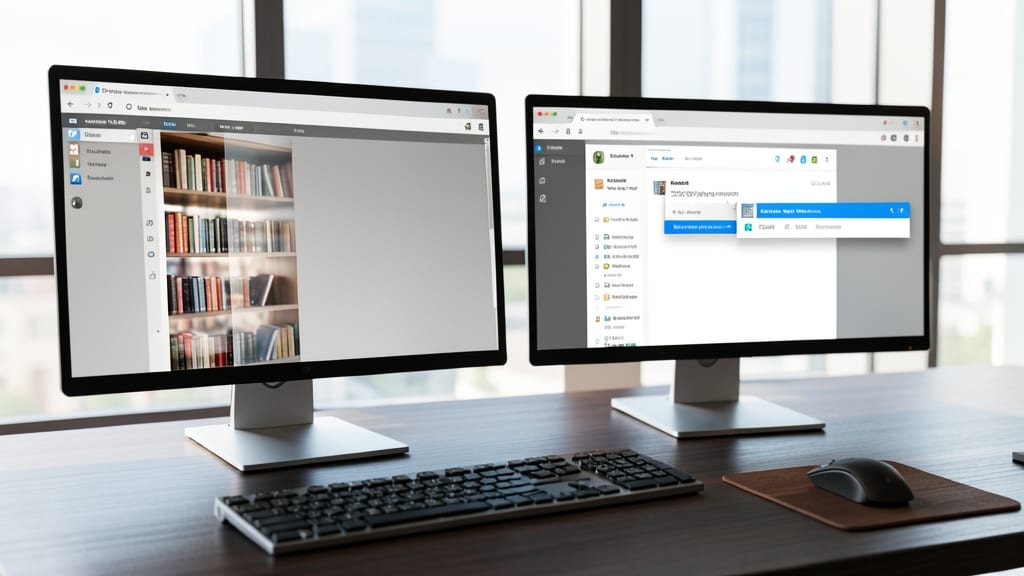
Tired of horizontal tabs cluttering your screen while juggling research, shopping, and work? Microsoft Edge’s vertical tabs transform multitasking into a breeze by stacking tabs neatly in a sidebar—no more tab overload.
With drag-and-drop rearranging, you can organize tabs instantly, and one-click close prevents accidental losses. Preview pages at a glance with live thumbnails, and the compact layout frees up precious screen space for your main content. Perfect for wide monitors or laptops where every pixel counts.
Ideal for developers testing multiple sites, writers referencing sources, or anyone drowning in open tabs, this feature turns chaos into control. ⚡
Automate Repetitive Tasks with Edge Workflows
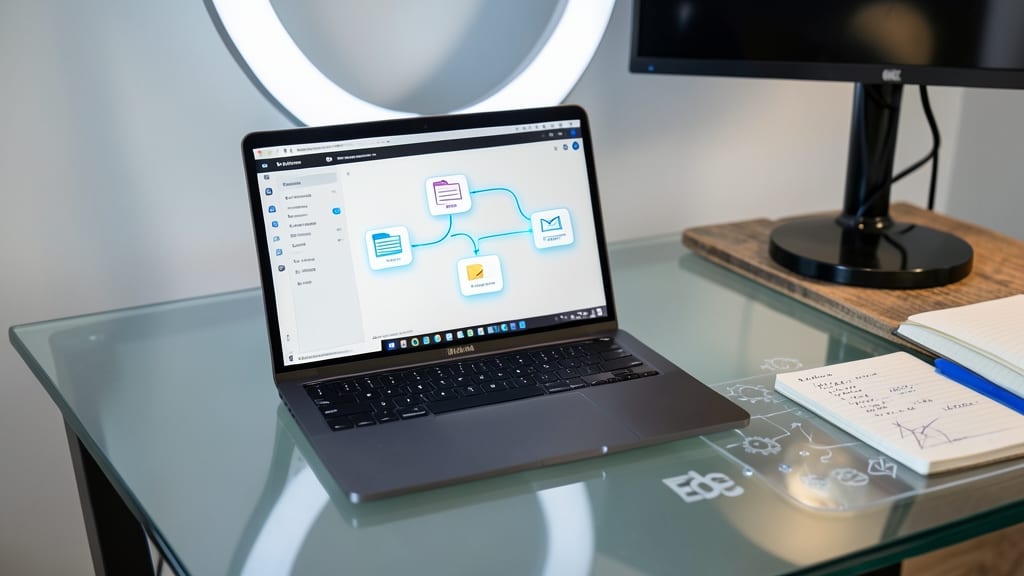
Tired of clicking the same buttons over and over? Microsoft Edge’s Workflows extension lets you automate repetitive tasks—like filling forms, extracting data, or sending emails—with just a few clicks. It’s like having a digital assistant that follows your exact instructions, no coding required.
With point-and-click automation, you can record actions (e.g., logging into a site, copying text, or submitting a form) and replay them instantly. The extension supports conditional logic (e.g., "if this field is empty, fill it automatically") and integrates with Microsoft Power Automate for advanced workflows. Best of all, it works across Windows, macOS, and even mobile devices.
Perfect for freelancers managing invoices, researchers compiling data, or anyone drowning in digital paperwork—this tool turns hours of manual work into minutes. ⚡
Sync Passwords Across Devices Securely
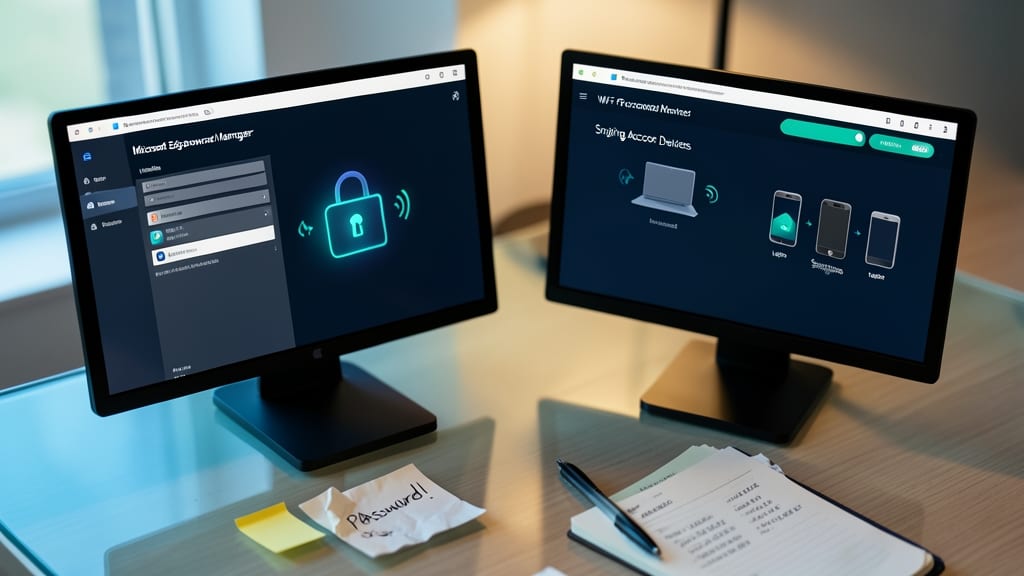
Tired of resetting passwords or scribbling them on sticky notes? Microsoft Edge’s built-in password manager eliminates the hassle by securely storing and auto-filling logins across all your devices—no third-party app needed. It’s like having a digital vault that travels with you.
With support for Windows, Android, and iOS, your saved passwords sync instantly, and the two-factor authentication (2FA) option adds an extra layer of security. The manager also generates strong, unique passwords on the fly, so you’ll never reuse a weak one twice. Plus, it’s encrypted and backed by Microsoft’s security protocols.
This feature is a must for busy professionals, students, or anyone juggling multiple accounts. Whether you’re logging into work emails, shopping sites, or social media, Edge keeps your credentials safe and accessible—all with just a few clicks. ✨