
Troubleshooting
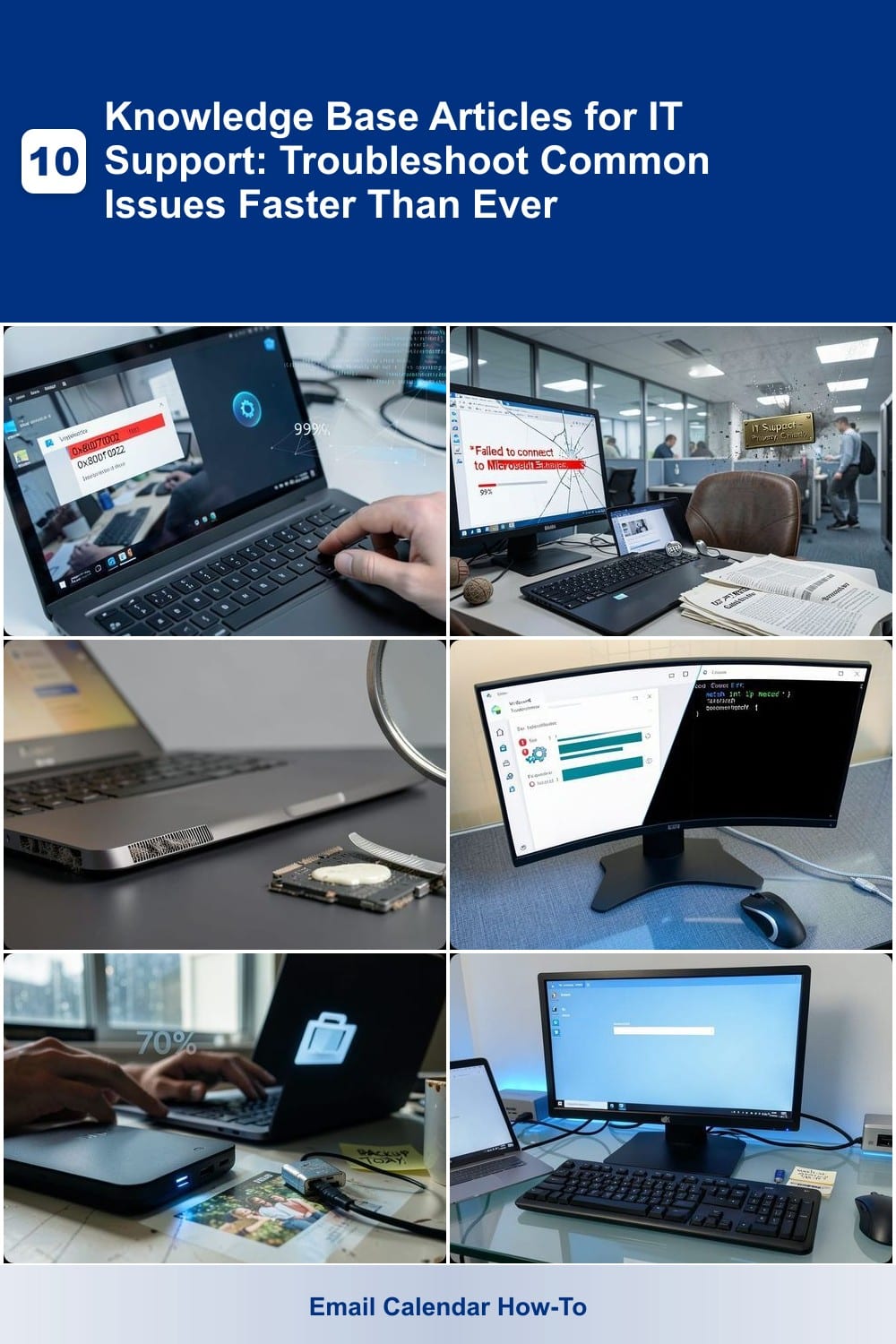
IT support teams waste countless hours searching for solutions to repetitive issues. These 10 knowledge base articles cover the most common tech problems—from software crashes to hardware failures—so you can resolve them faster, reduce ticket volume, and keep users productive.
How to Fix Windows Update Errors
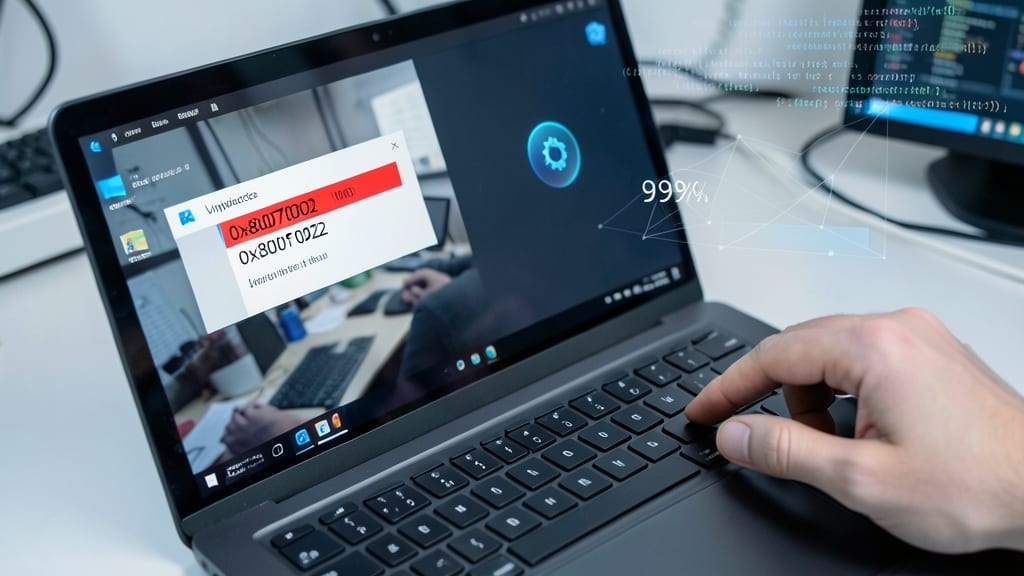
Stuck on a Windows update error like 0x80070002 or 0x800f0922? These frustrating roadblocks waste hours of IT support time—until now. This guide breaks down the top 10 Windows update failures with direct fixes, from built-in troubleshooters to registry tweaks for stubborn issues.
Start with Windows Update Troubleshooter (built into Settings > Update & Security) for automated fixes. For deeper issues, use DISM (DISM /Online /Cleanup-Image /RestoreHealth) or SFC (sfc /scannow) via Command Prompt (Admin). Advanced users can tweak the Windows Update service (stopping it, clearing the SoftwareDistribution folder, then restarting) or adjust registry keys like HKEYLOCALMACHINE\SOFTWARE\Microsoft\Windows\CurrentVersion\WindowsUpdate\Auto Update\AUOptions to force a retry.
IT teams will love the structured error-code lookup table and preventative maintenance tips to avoid future disruptions. Perfect for desktop support in offices or remote helpdesks dealing with update headaches. ✨
Resolving Outlook Email Sync Issues

When Outlook sync errors cripple productivity, your team’s workflow grinds to a halt. Corrupted OST/PST files, slow sync speeds, and authentication failures are among the most frustrating issues IT teams face—especially in Exchange/Office 365 environments where uptime is critical.
Start with Microsoft’s ScanPST (Inbox Repair Tool) to fix corrupted data files, then deploy the Microsoft Support and Recovery Assistant for deeper diagnostics. For authentication errors, reset credentials via Exchange Admin Center or use PowerShell to verify autodiscover.xml settings. Server-side fixes often resolve slow sync by adjusting mailbox quotas or optimizing automatic caching settings in Outlook’s advanced options.
This solution is ideal for enterprise IT admins managing Outlook deployments across departments. A battle-tested setup for keeping emails flowing smoothly. ✨
MacBook Overheating Troubleshooting Guide
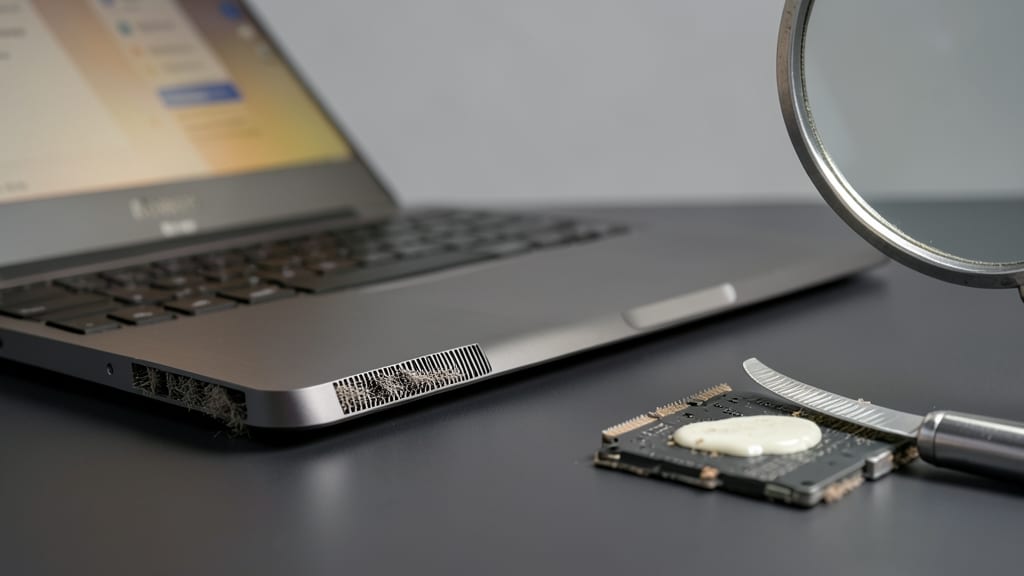
If your MacBook Pro or Air suddenly throttles performance or shuts down unexpectedly due to heat, don’t panic—this step-by-step guide cuts through the noise with actionable fixes that actually work. Dust-clogged vents, rogue apps, and firmware quirks are the usual culprits, and addressing them properly can restore your laptop’s lifespan.
Start by cleaning vents with compressed air (never a vacuum!) to remove dust buildup blocking airflow. Next, reset the SMC (System Management Controller) and NVRAM—Apple’s built-in tools that often resolve thermal throttling. For stubborn cases, open Activity Monitor to spot CPU-heavy apps (like Adobe Suite or Chrome tabs) and close them. Pro tip: Use a cooling pad with adjustable fans to prevent future overheating.
This guide is perfect for creatives, developers, and remote workers whose MacBooks run hot under heavy loads. With these fixes, you’ll avoid costly repairs and keep your device running smoothly for years. 💻
Fixing Slow Internet on Windows 10/11
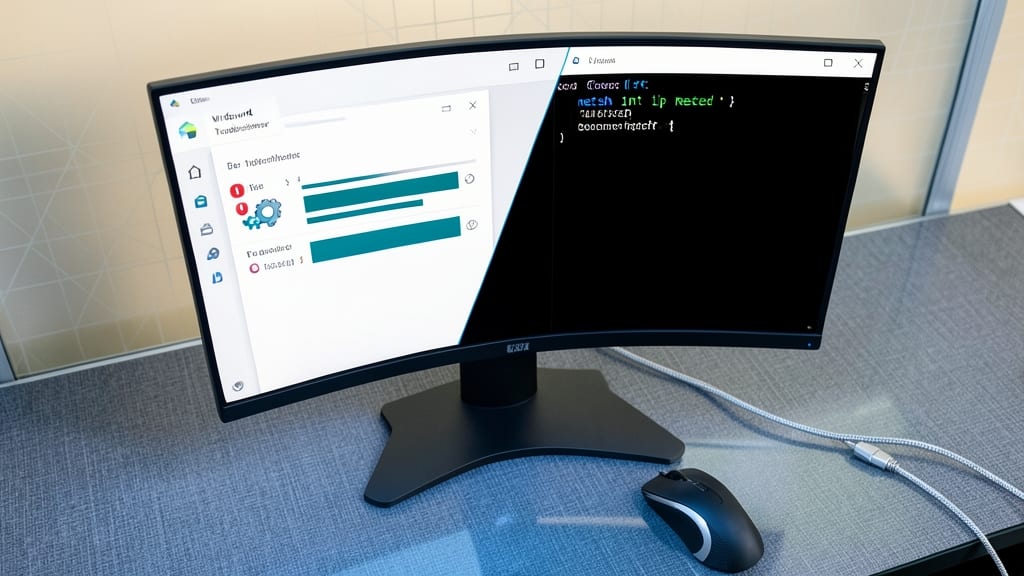
When your internet feels like molasses, Windows 10/11 offers built-in tools to diagnose and fix the root cause—without calling your ISP yet. The Network Troubleshooter automatically checks for DNS leaks, proxy conflicts, and driver issues, while TCP/IP reset commands (netsh int ip reset) can clear stubborn configuration errors in seconds.
For deeper visibility, GlassWire reveals real-time bandwidth hogs (like background updates or malware), and switching to Google DNS (8.8.8.8) often bypasses ISP throttling. Driver conflicts? Update your Wi-Fi or Ethernet adapter drivers via Device Manager—outdated versions are a top culprit for sluggish speeds.
This approach works best for home users and small offices where ISP support loops are frustrating. ⚡
Recovering Deleted Files from External Drives

Panicking after emptying your external drive’s Recycle Bin? You’re not alone—70% of accidental deletions happen on portable storage, and many files vanish forever without the right tools. Unlike internal drives, external storage often lacks backups, making recovery a high-stakes priority.
Start with Recuva (free) for quick scans of FAT32/NTFS/exFAT drives, or TestDisk for deeper recovery of corrupted partitions. Windows 10/11’s built-in File Recovery (via PowerShell) handles unallocated space with zero config. For failed backups, focus on tools that bypass the drive’s file table—TestDisk’s partition recovery mode often saves the day when others fail.
This isn’t just for tech novices: photographers, developers, and remote workers rely on these tools daily. Bookmark these solutions before your next "oops" moment strikes. ✨
Resetting Forgotten Windows Login Passwords
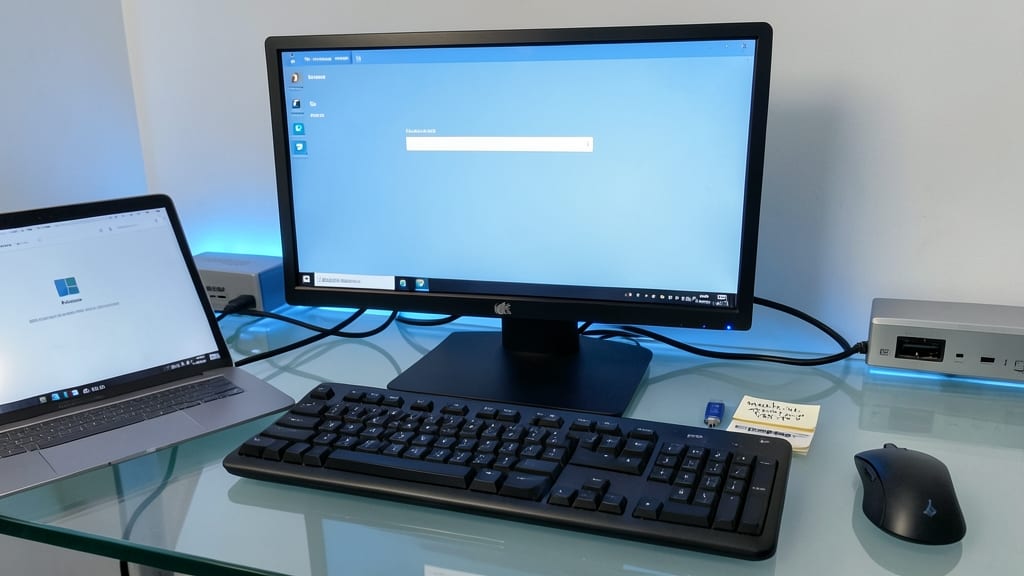
Forgotten Windows login passwords don’t have to mean reinstalling the entire OS. Whether it’s a local account or a Microsoft account lock, these no-reinstall solutions will get you back in without losing data. Start with a password reset disk (if you created one beforehand) or use the built-in administrator account bypass in Windows Safe Mode for local accounts.
For Microsoft accounts, try the official reset link or third-party tools like Ophcrack (for enterprise environments) to crack passwords via live USB. Pro tip: Command Prompt commands like net user or net localgroup administrators can add a temporary admin account if you have physical access. These methods work on Windows 7 through 11 without wiping your system. 💻
Eliminating Blue Screen of Death Errors

When a Blue Screen of Death (BSOD) strikes, panic sets in—but the error code is your first clue. Decoding CRITICALPROCESSDIED or PAGEFAULTINNONPAGEDAREA can pinpoint whether the issue is a corrupt driver, failing RAM, or a misconfigured service.
Start by booting into Safe Mode to isolate conflicts, then use Windows Memory Diagnostic to test RAM for hardware failures. For driver issues, roll back the latest updates via Device Manager or reinstall them from scratch. Event Viewer logs often reveal deeper system conflicts, while System File Checker (sfc /scannow) repairs corrupted OS files. ⚡
This guide is perfect for IT admins and end-users dealing with sudden crashes—whether it’s a gaming rig, workstation, or server. A structured approach turns chaos into a quick fix. 💻
Fixing Printer Connection and Driver Issues
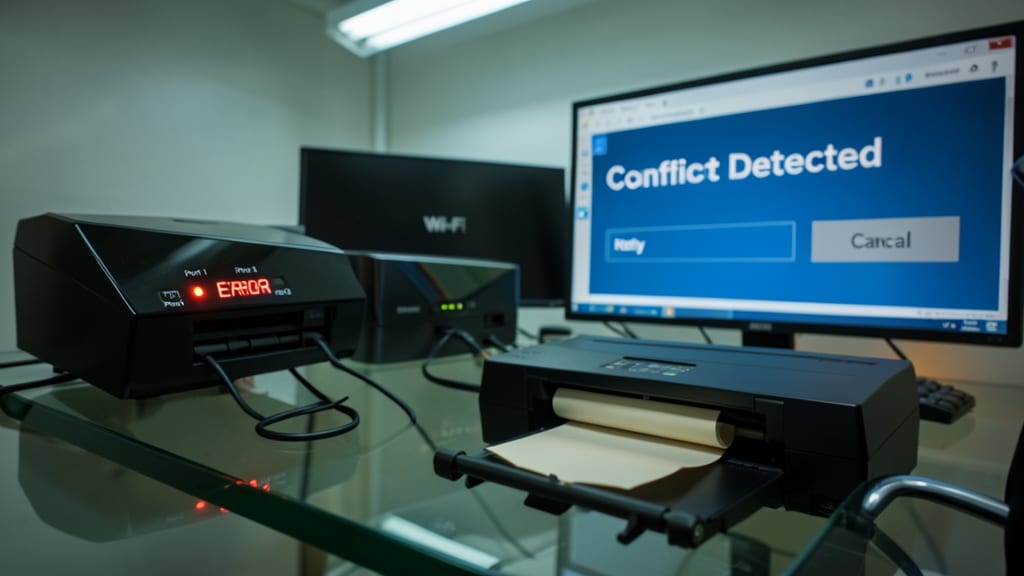
Shared network printers and USB connectivity errors can turn into productivity killers faster than you can say "paper jam." This guide tackles the most frustrating printer issues—from network discovery failures to driver conflicts—with solutions that actually work the first time, so you can get back to printing (or fixing something else).
Start with Windows Print Server troubleshooting for network printers, where clearing stale connections via printui.dll or resetting the spooler service (net stop spooler/net start spooler) often resolves "printer offline" errors. For USB printers, manually download the latest driver from the manufacturer’s site (not Windows Update) and use Device Manager to update drivers with the "Have Disk" option. Manufacturer-specific fixes—like HP’s HP Print and Scan Doctor or Brother’s Printer Software Updater—handle quirks like 0x00000709 errors with targeted scans.
This guide is your go-to for IT admins managing office fleets, remote workers with USB printers, or anyone stuck in a loop of "printer not responding" messages. No more guessing—just reliable fixes. 🖥️
Securing Remote Desktop Connections

Remote Desktop Protocol (RDP) is a double-edged sword—it enables seamless remote access but also becomes a prime target for brute-force attacks if left unsecured. Locking down your RDP connections isn’t just about preventing unauthorized access; it’s about stopping account lockouts and brute-force attempts that cripple productivity.
Start by enforcing Network Level Authentication (NLA) in Group Policy to require credentials before a session is established. Enable multi-factor authentication (MFA) via Azure AD or third-party tools like Duo Security, and restrict RDP access to specific IP ranges using Windows Firewall rules. For locked accounts, use Local Security Policy to adjust failed login thresholds and unlock accounts via net user commands or Active Directory Users and Computers.
This setup is ideal for IT admins managing remote teams or MSPs handling client workstations. With these tweaks, you’ll block brute-force attacks and resolve the dreaded "account locked" errors without reinstalling Windows. ✨
Linux Command Line Essentials for IT Support

Even in Windows-heavy environments, Linux servers lurk in the shadows—handling backups, hosting web apps, or running critical services. If you’re an IT pro who’s avoided the command line, these four essential commands will let you diagnose issues without diving into full Linux administration.
Start with df -h to spot disk space issues (like full /var partitions), then use chmod to fix permission errors on shared folders. For service failures, journalctl -xe reveals logs in real-time, while top shows CPU/memory hogs. Each command takes seconds to run and saves hours of guesswork.
Perfect for sysadmins supporting hybrid environments—no need to become a Linux expert, just enough to keep services running smoothly. ✨