
PowerPoint
PowerPoint transitions can transform a basic presentation into a dynamic, professional experience. Mastering these seven transition effects will help you create smooth slide flow that keeps your audience engaged and elevates your presentation quality instantly.
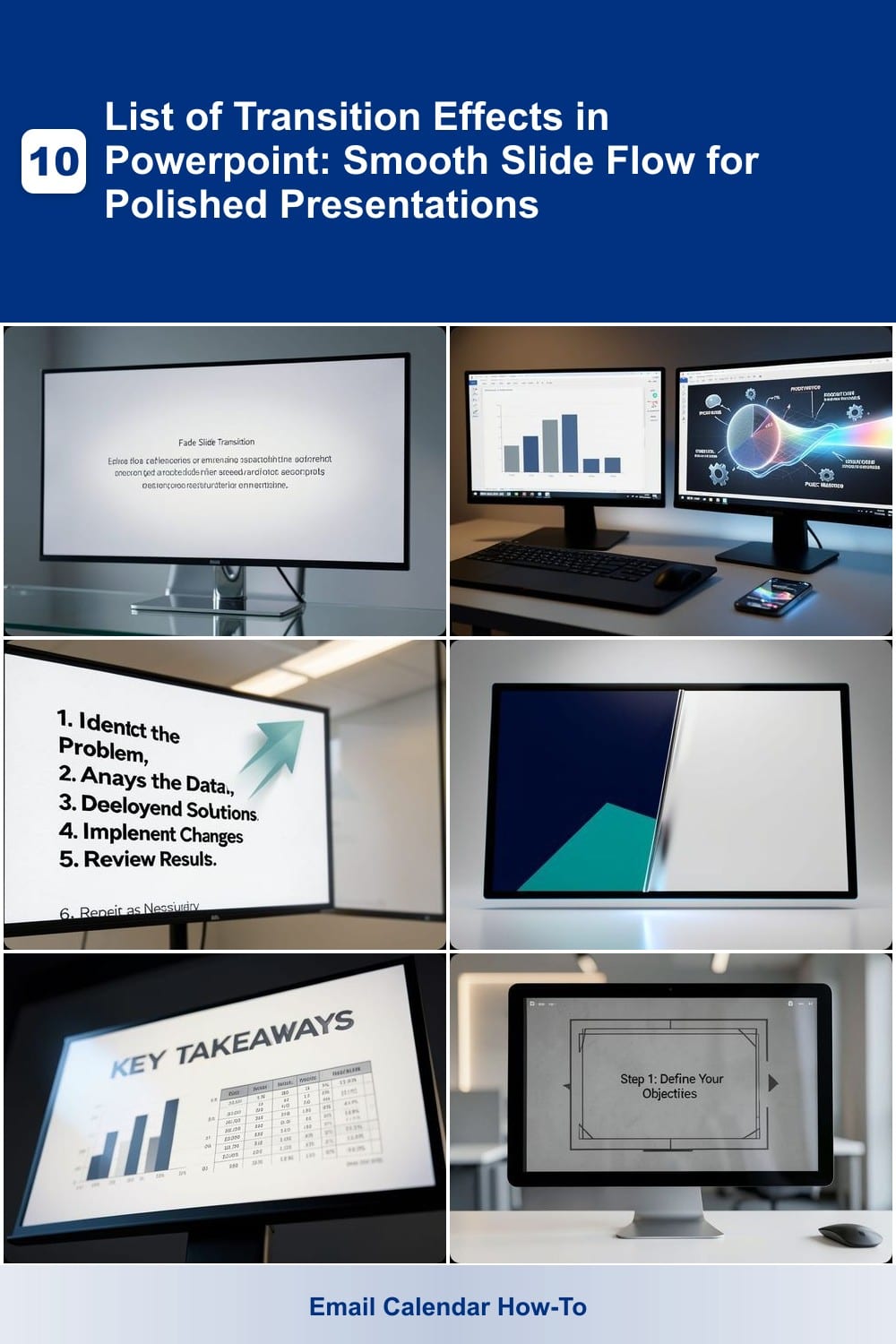
Fade Slide Transition for Professional Elegance
Struggling to keep your corporate presentations looking polished and distraction-free? The Fade Slide Transition delivers a timeless, professional touch that subtly guides your audience through content without stealing focus. This classic effect smooths the shift between slides using a gradual opacity change, making it perfect for high-stakes business meetings or client pitches.
Available in PowerPoint 2016, 2019, and 365, this transition works seamlessly with minimal text and high-quality visuals, ensuring your data or graphics remain the star. You can adjust the duration (0.1s to 5s) to match your pacing, and it pairs well with subtle background music for an even more refined feel. The simplicity ensures compatibility across devices and projectors.
Ideal for executives, trainers, and marketers, this transition elevates presentations where clarity and professionalism are key. Use it to maintain audience engagement without overwhelming them. ✨
Slide Morph Transition for Creative Storytelling
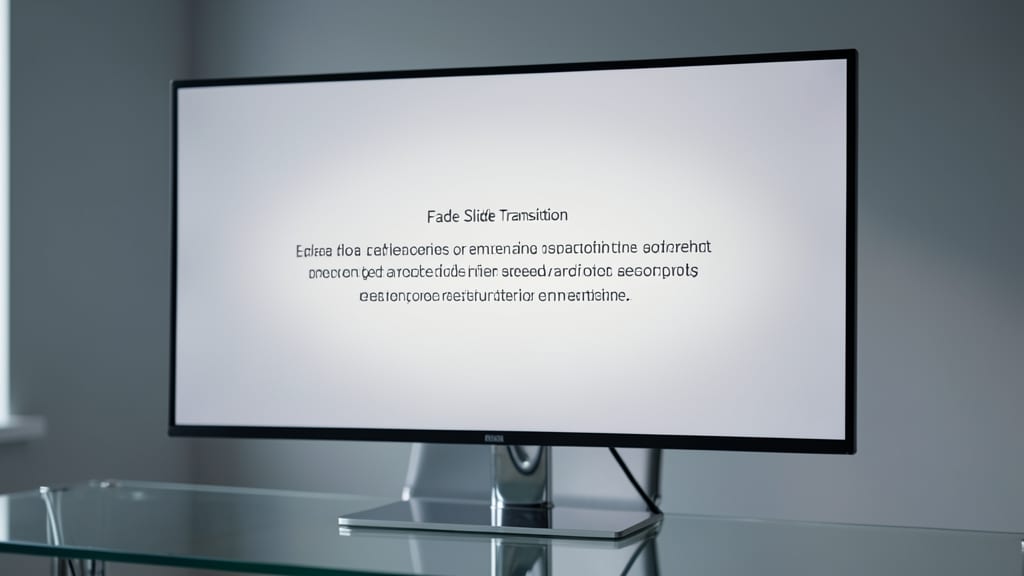
Turn static data into a dynamic narrative with the Slide Morph Transition, where shapes and text fluidly transform between slides. Unlike basic fades, this effect preserves visual continuity—ideal for presentations packed with graphs, charts, or infographics where every pixel tells part of the story.
PowerPoint’s Morph feature (available in 2016 and later versions) lets you animate shapes, text boxes, and objects while maintaining alignment. The transition works best when slides share a consistent layout—think of it as a visual bridge between data points. For example, morph a bar chart into its updated version or smoothly transition between two versions of the same diagram.
Data analysts and educators will love this for explaining trends or comparing datasets, as it keeps focus on the content while adding a polished, cinematic touch. Just avoid overusing it with slides that vary wildly in structure—consistency is key! ✨
Push Transition for Dynamic Movement Effects
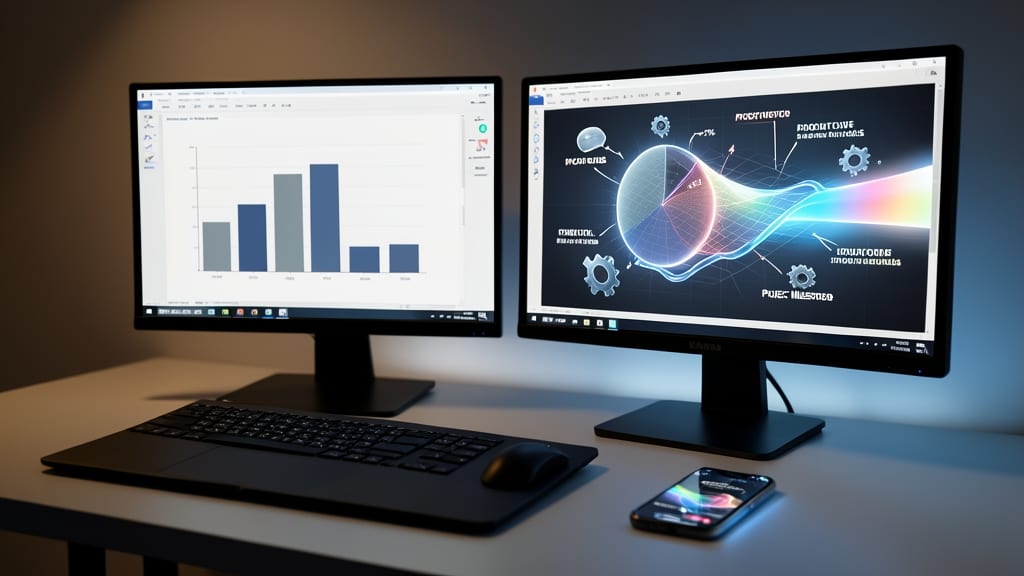
Need to make your educational presentations feel more dynamic? The Push Transition injects movement by sliding slides in from any direction—left, right, top, or bottom—creating a sense of progression that’s perfect for step-by-step explanations or directional workflows.
With four directional options (horizontal or vertical), you can emphasize flow, sequence, or even spatial relationships in your content. The transition’s kinetic energy keeps audiences engaged without overwhelming them, making it ideal for lessons, tutorials, or any presentation where movement reinforces meaning. Plus, it’s available in PowerPoint 2016, 2019, and 365, ensuring broad compatibility.
Educators and trainers will love this transition for its ability to visually guide attention—think of it as a cinematic tool for teaching. Just avoid overusing it to prevent distraction from your core message. ✨
Wipe Transition for Clean Visual Breaks
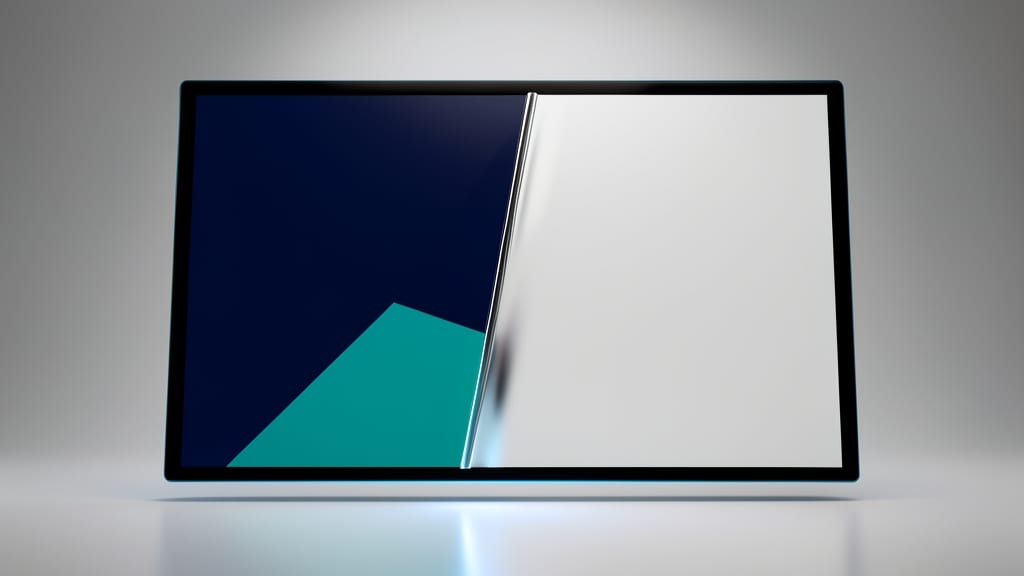
Need a sharp visual reset between slides without overwhelming your audience? The Wipe Transition delivers a crisp, directional reveal that instantly signals a new section or theme in your presentation.
Available in horizontal, vertical, or diagonal directions, this transition works like a curtain opening—revealing content with precision. It pairs perfectly with minimalist designs and high-contrast visuals, ensuring the focus stays on your message. Customize the wipe direction and speed to match your presentation’s rhythm, or pair it with sound effects for added impact.
Perfect for corporate reports, product demos, or themed presentations, this transition excels when you want to visually separate ideas without losing professionalism. ⚡
Zoom Transition for Emphasizing Key Points
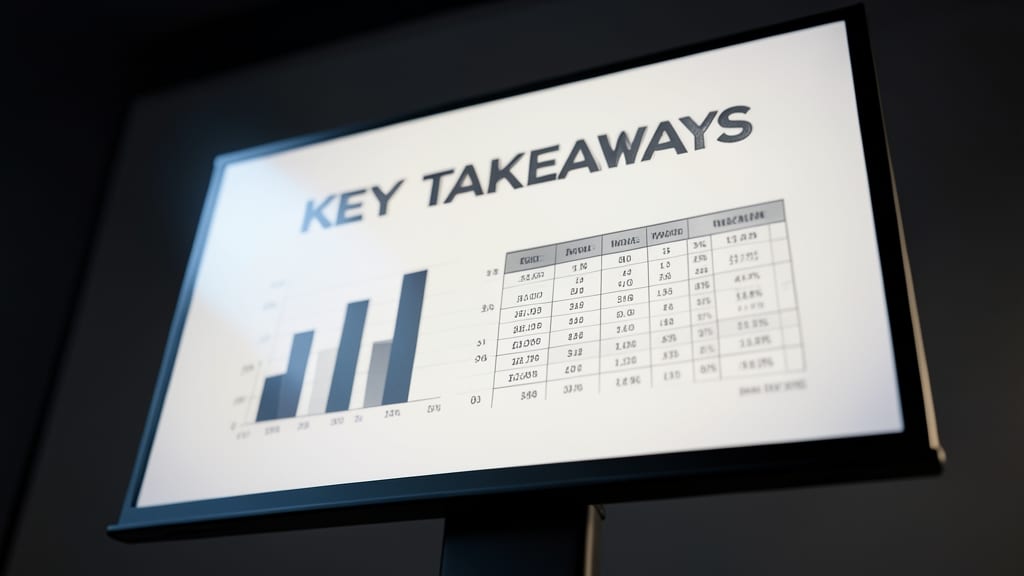
Need to make your audience feel the weight of your key takeaways? The Zoom Transition delivers exactly that by dynamically zooming in or out to spotlight pivotal slides. Unlike static transitions, this effect creates a cinematic "pull" that naturally directs attention to case studies, financial results, or closing arguments.
PowerPoint’s built-in Zoom Transition offers smooth scaling with adjustable speed (0.5x to 4x) and direction (in/out). Pair it with high-contrast visuals (e.g., bold charts or impactful images) to maximize its dramatic effect. Pro tip: Use it sparingly—once per section—to avoid overwhelming your audience.
Perfect for sales decks, executive summaries, or keynote presentations where you want to emphasize pivotal moments. Just don’t overdo it—this transition shines brightest when used intentionally. ✨
Box In Transition for Structured Content Flow
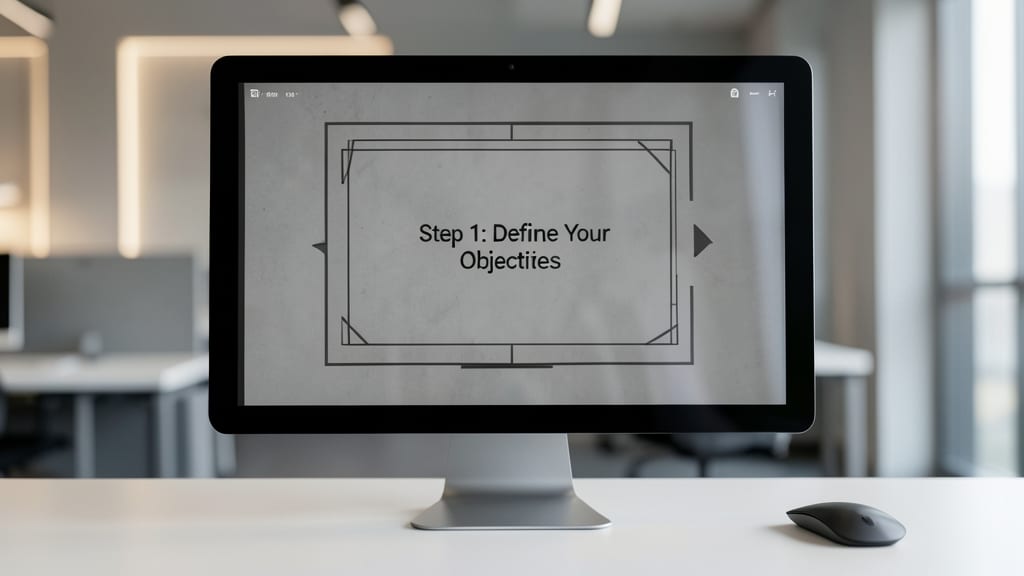
When your presentation follows a clear, step-by-step structure—like a tutorial or procedural walkthrough—the Box In Transition adds visual structure without overwhelming your audience. Unlike flashy animations, this transition frames each slide with a clean, geometric border, reinforcing the idea of organized progression.
Available in PowerPoint 2016, 2019, and 365, this effect works best with slides that have distinct sections (e.g., numbered steps or bullet-point lists). You can customize the box color, thickness, and speed to match your design, ensuring it aligns with your brand or presentation theme. The subtle framing keeps focus on content while subtly signaling transitions between logical blocks.
Perfect for educators, trainers, or analysts presenting structured data, workflows, or methodologies. It’s the ideal choice when you want to emphasize order without sacrificing professionalism. ✨
Random Bars Transition for Modern Visual Appeal
Want to give your presentation a bold, artistic edge without sacrificing professionalism? The Random Bars Transition brings a futuristic, abstract flair by revealing slides through dynamic, irregularly shaped bars that shift direction unpredictably.
Unlike structured transitions, this effect uses colorful, animated bars that move in random patterns, creating a visually striking reveal. It’s perfect for creative industries like design, marketing, or tech startups where you want to stand out. Just be mindful—its high-energy style works best sparingly to avoid distracting from your core message. ⚡