
Tip & Trick
Struggling to find files in your Microsoft ecosystem? Mastering file naming conventions can save hours of frustration. These proven strategies help you organize files in Windows, OneDrive, and Office Suite for seamless access and collaboration.
Windows file naming rules explained
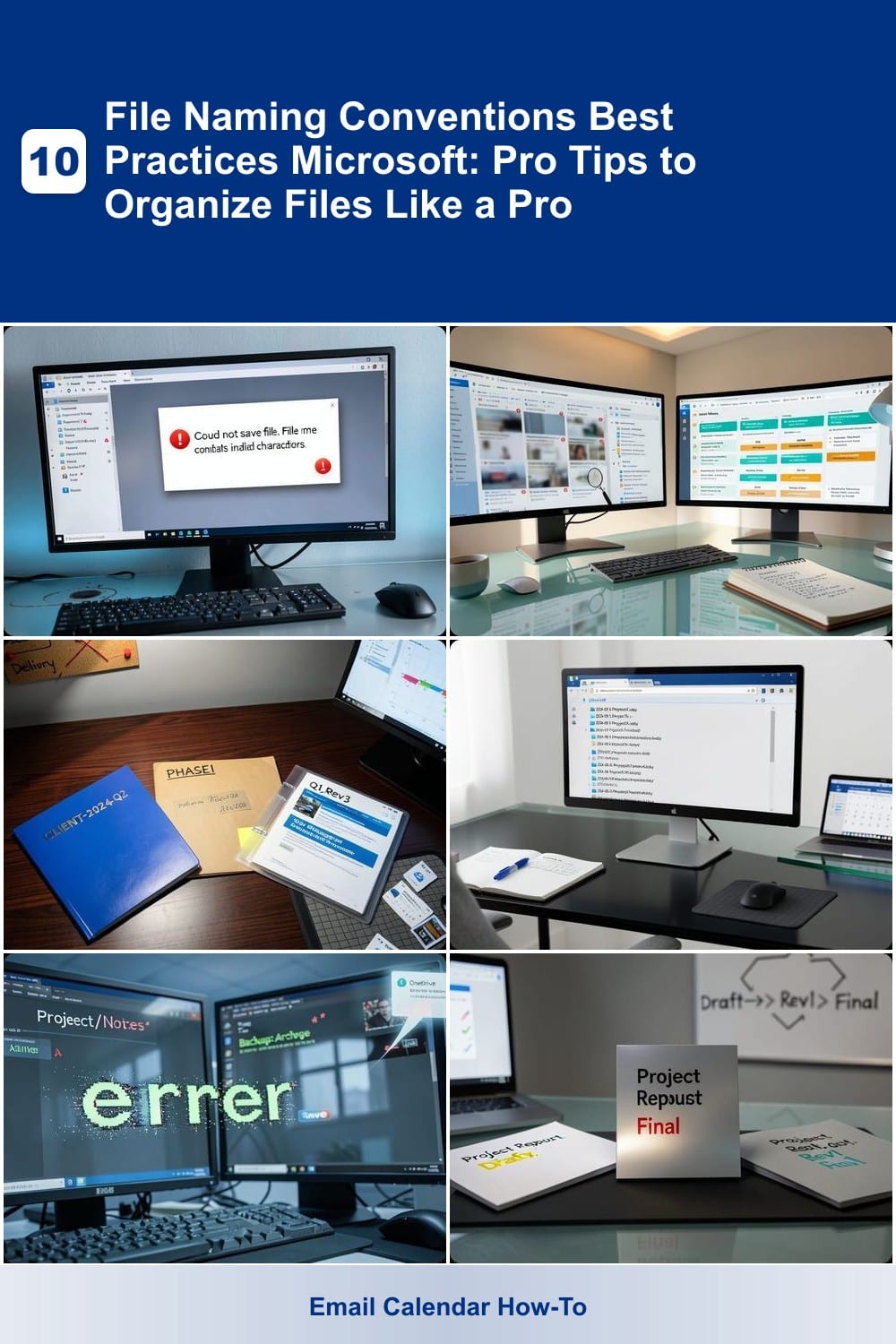
Ever hit "Save" only to get a cryptic error message from Windows? The fix starts with understanding Microsoft’s strict file naming rules—which can make or break your workflow. Ignoring these can corrupt files, break syncs, or even prevent access in critical apps like Excel or SharePoint.
Windows enforces three key rules: no reserved characters (like * ? < > : " |), a 255-character max per filename, and case-insensitivity (so Report.doc and report.DOC are treated as identical). Use underscores (_) instead of spaces for cross-platform compatibility, and always include .docx or .pdf extensions to avoid hidden issues.
This matters most for developers, admins, and teams sharing files across Windows machines. Stick to these rules, and you’ll never lose a file to a mysterious system error again. ✨
OneDrive smart naming for cloud sync
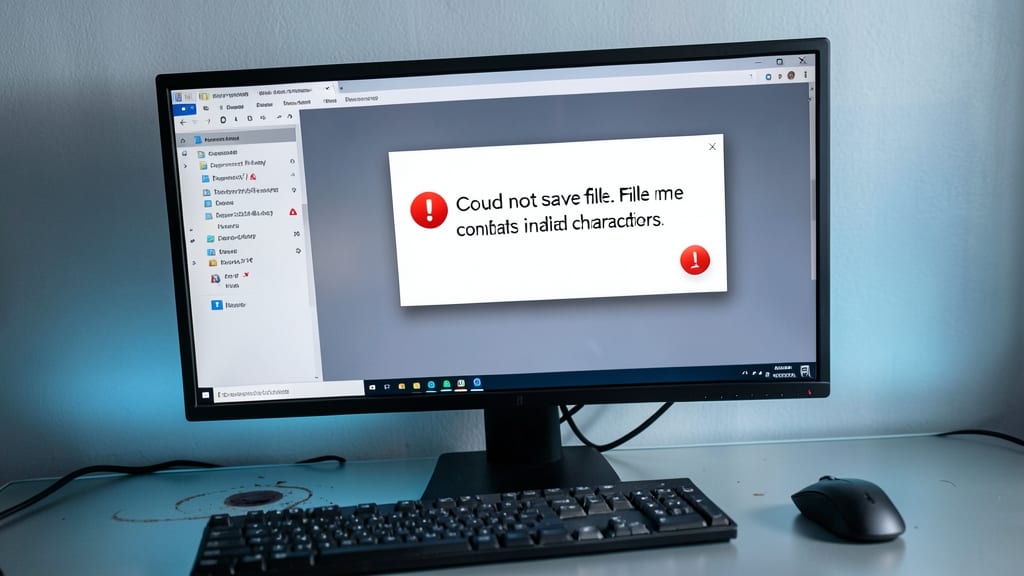
Tired of digging through OneDrive’s cluttered search results? OneDrive Smart Naming transforms how you organize files in the cloud by prioritizing metadata-friendly structures and collaboration-ready labels. Unlike basic Windows rules, this approach focuses on what happens after you save—how files appear in shared links, search filters, and version history.
Use prefixes like "PROJ-" or "CLIENT-" to auto-group files in search, while suffixes like "Final" or "Draft" clarify status without version chaos. OneDrive’s built-in search filters (e.g., "modified this week") work best with YYYY-MM-DD_ProjectName formats. Pro tip: Avoid underscores in shared links—stick to hyphens for cleaner URLs.
Teams using Teams + OneDrive will love this—shared folders stay tidy, and recipients instantly grasp file purpose from the name alone. ⚡
Office Suite project-based naming
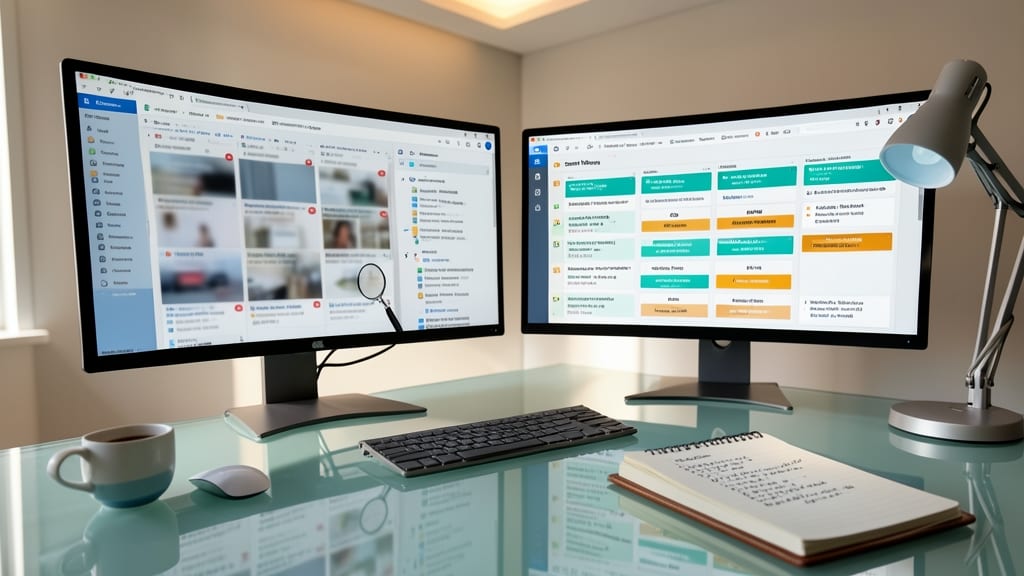
Tired of digging through folders for that one PowerPoint deck from last quarter? Project-based naming transforms chaos into clarity by grouping files by phase, client, or date—so every team member finds what they need in seconds.
Use prefixes like CLIENT-2024-Q2 for client projects or PHASE1 for sequential deliverables. Pair this with YYYY-MM-DD dates (e.g., CLIENT-2024-Q2Proposal2024-05-15.pptx) to ensure chronological sorting in Windows and Teams. Shared drives become intuitive when files are labeled consistently—no more "Version3FinalActuallyFinal.docx" headaches.
This system shines for agencies, consulting teams, or any group juggling multiple projects. With files organized by context, you’ll spend less time searching and more time delivering. ✨
Date-based filename formatting guide
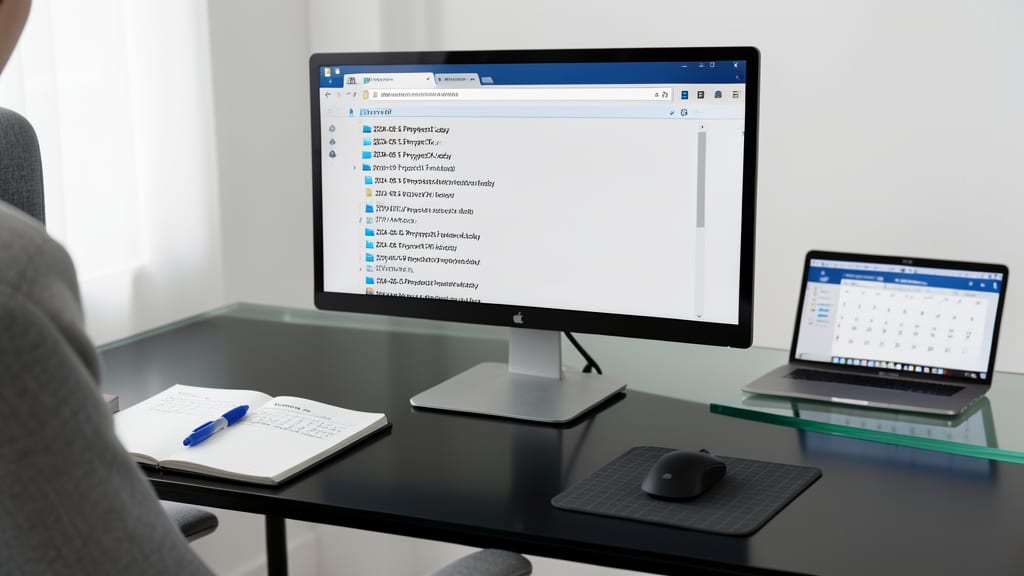
Deadlines and version tracking don’t have to be a guessing game—YYYY-MM-DD filenames sort automatically in every file explorer, saving you from alphabetical chaos. This method ensures your 2024-05-15ProjectX.docx always appears before 2024-06-01ProjectXFinal.docx, even if you rename files later.
Pair dates with sequential numbering (e.g., 2024-05-15v01, 2024-05-15_v02) for revisions—Windows and macOS both recognize the pattern. Avoid underscores in dates (use hyphens) to maintain compatibility, and keep filenames under 255 characters to prevent truncation errors.
Freelancers, project managers, and anyone juggling multiple deadlines will love this system. It’s the only method that works flawlessly across Windows, macOS, and cloud storage without manual sorting. ✨
Avoiding special characters in Microsoft files
Ever hit "Save" only to see a file become unopenable or vanish from search results? The culprit is often special characters lurking in filenames—like slashes (/), colons (:), or asterisks ()—that Microsoft apps silently corrupt. These symbols trigger hidden errors in Windows, OneDrive, and even SharePoint, turning your carefully saved work into a digital black hole.
Stick to letters (A-Z), numbers (0-9), spaces, hyphens (-), and underscores () for bulletproof compatibility. Replace forbidden symbols with these safe alternatives:
- Forward slash (/) → Hyphen (-) (e.g., 2024-Q1-Report.docx → 2024-Q1-Report.docx)
- Colon (:) → Underscore () (e.g., 10:00AMMeetingNotes.docx*)
- Asterisk (*) → "Star" or "spt" (e.g., StarWildcard_Notes.docx)
Microsoft’s Office Suite and Windows Explorer will recognize these substitutions without errors.
This rule is non-negotiable for freelancers, IT admins, and teams sharing files across devices. A single misplaced character can break syncs or lock files—so play it safe and keep your filenames clean and predictable. 💪
Version control naming for office docs
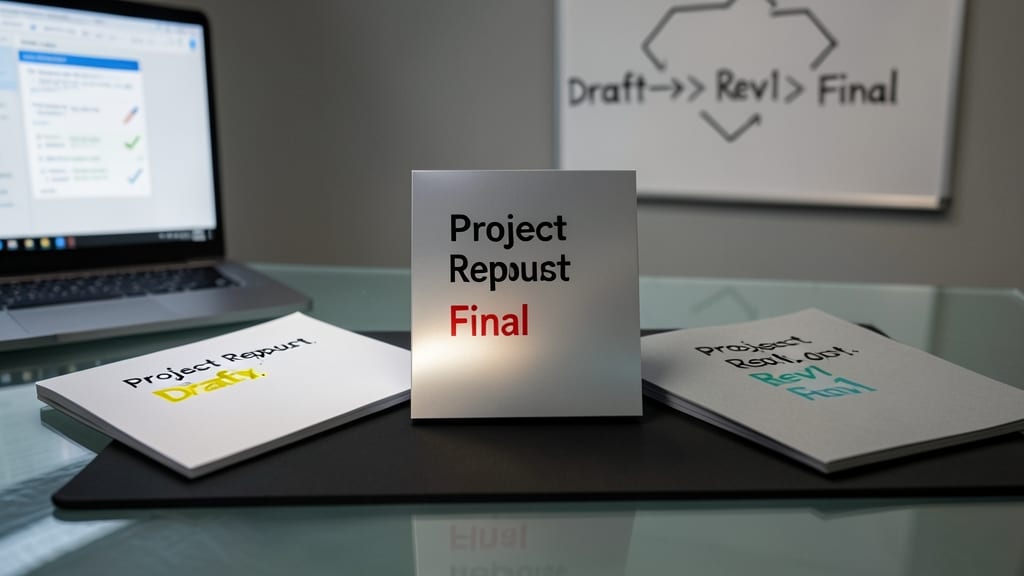
Say goodbye to the endless cycle of finalfinalv3.docx—Microsoft’s built-in version history works best when paired with a standardized naming system. Instead of guessing which file is the "real" final, use clear suffixes like Draft, Final, or Rev1 to mirror Word’s version tracking. This keeps your files organized and lets you recover lost edits with one click.
Start with a base filename (e.g., Q2Report), then append Draft for work-in-progress docs and Final when approved. For revisions, use Rev1, Rev2, etc.—this aligns perfectly with Word’s Track Changes and AutoSave features. Bonus: OneDrive’s version history respects these suffixes, so you’ll never lose a draft again.
This system is a game-changer for legal teams, marketing agencies, and freelancers who juggle multiple revisions. With standardized labels, everyone knows exactly which file to open—and Microsoft’s tools do the rest. ✨
Cross-platform naming for mixed teams
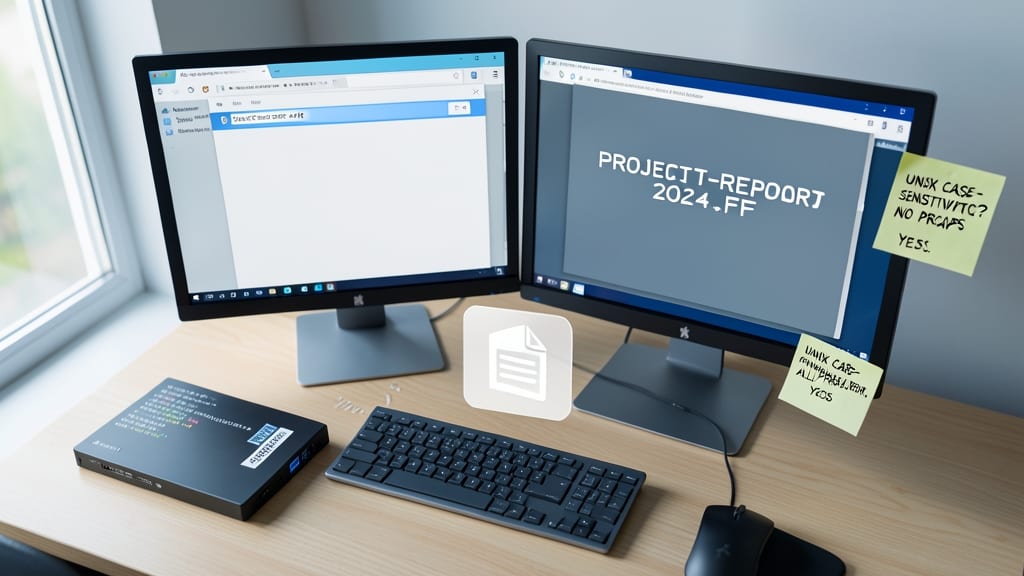
Frustrated when your Windows team can’t find files shared by macOS/Linux collaborators? The fix lies in cross-platform naming consistency—a system that bridges Unix case-sensitivity with Windows flexibility without sacrificing usability.
Start with all-caps filenames (e.g., PROJECT-REPORT2024.pdf) to avoid macOS/Linux case-sensitivity issues while keeping Windows compatibility. Use hyphens (-) over underscores () for readability in Unix terminals, and stick to ASCII-only characters (no accents or symbols) for universal compatibility. Tools like Total Commander or Bulk Rename Utility can automate conversions between systems.
This approach is a game-changer for hybrid teams in tech, design, or development where files flow between Windows dev environments and macOS/Linux servers. No more lost files or version confusion—just seamless collaboration. 💻