
Operating System
Cyber threats evolve daily, but these 10 proven tactics will fortify your Windows or Mac against phishing, malware, and data breaches—without requiring technical expertise. Learn actionable steps to secure your devices and digital life today.
Enable multi-factor authentication everywhere
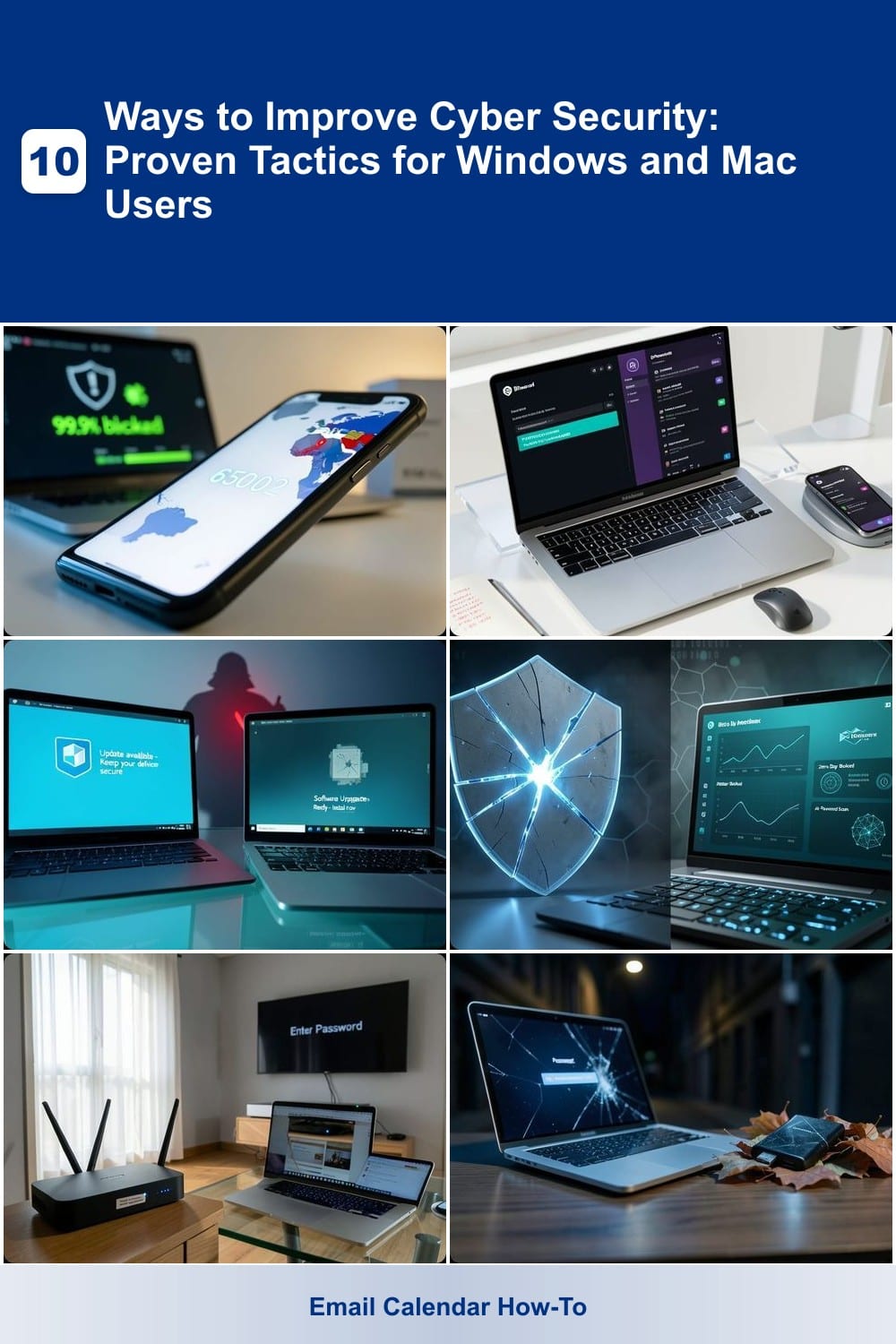
If you’ve ever had a cold sweat after spotting a login attempt from a country you’ve never visited, multi-factor authentication (MFA) is your first line of defense. This simple step blocks 99.9% of account takeovers, making it the single most effective way to protect email, banking, and social media accounts—without requiring a tech degree.
Most platforms now support zero-config MFA through built-in apps like Microsoft Authenticator (Windows/Mac) or Google Authenticator. These generate time-based codes that expire every 30 seconds, while hardware keys like YubiKey offer even stronger protection for high-risk accounts. The best part? It takes less than five minutes to enable across all your critical services.
Whether you’re a freelancer managing client data or a casual user worried about social media hacks, MFA is non-negotiable. Start with your email and bank accounts—those are the keys to your digital kingdom. ✨
Use strong passwords with a manager
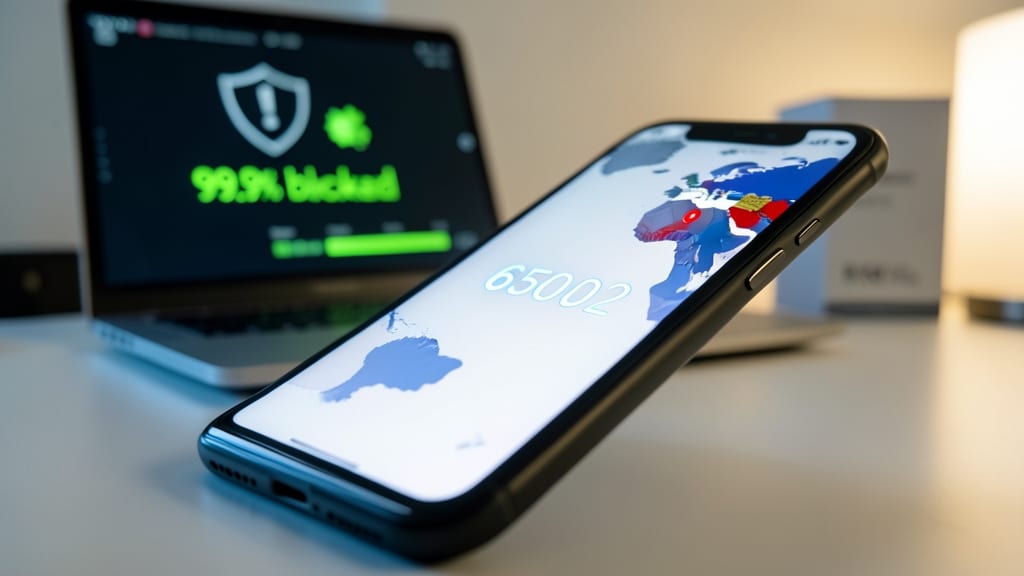
Tired of reusing the same weak passwords across accounts? A password manager like Bitwarden or 1Password eliminates this risk by auto-generating and storing 24-character, cryptographically secure passwords—far stronger than anything you’d remember.
These tools sync across devices with end-to-end encryption, so your credentials stay private even if your device is lost. They also fill logins automatically, reducing typing errors and phishing risks. Bitwarden’s free tier covers most users, while 1Password offers family-sharing plans for teams.
Ideal for anyone juggling multiple accounts—from freelancers to families—password managers cut breach risks by 90%, making them the simplest upgrade to your security toolkit. ✨
Update operating systems immediately
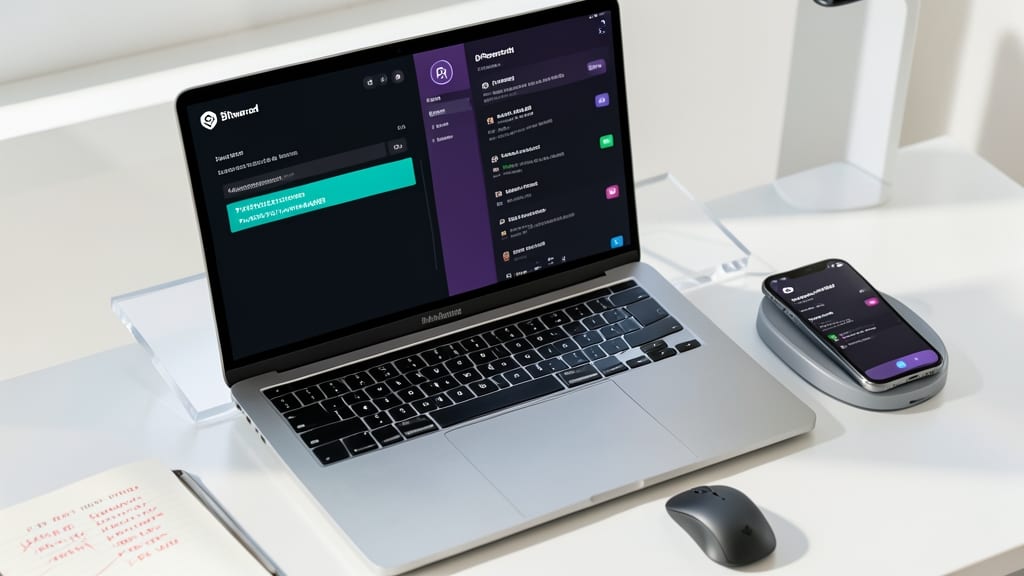
Your operating system is the first line of defense against cyber threats—and keeping it updated is the easiest way to plug security holes before hackers exploit them. Sixty percent of breaches target outdated systems, yet many users delay updates, leaving their devices vulnerable to exploits that could steal data or hijack accounts.
On Windows, enable Windows Update (Settings > Windows Update) to install patches automatically. For macOS, open System Preferences > Software Update and select "Automatic updates." Both systems now include zero-configuration updates that run silently in the background, ensuring you’re always protected without lifting a finger. These updates don’t just fix bugs—they patch critical vulnerabilities like CVE-2023-23397 (Windows) or CVE-2023-28205 (macOS) that cybercriminals actively scan for.
This is the one security habit that requires zero effort but delivers outsized protection. Whether you’re a casual user or a power user, enabling automatic updates is the fastest way to harden your system against the most common attack vectors. ⚡
Install a lightweight antivirus suite
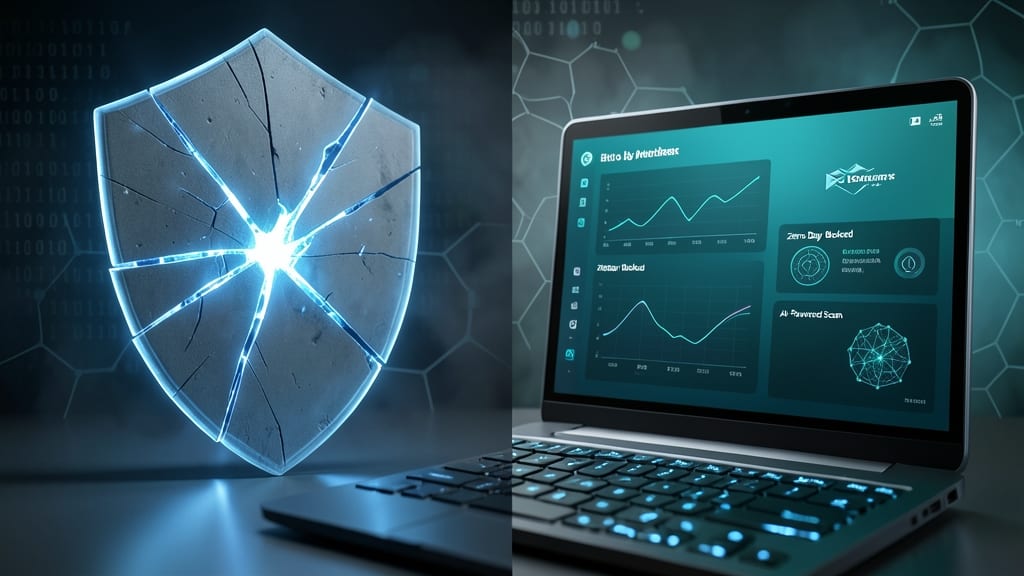
Free antivirus tools often leave gaps—especially against zero-day exploits—but you don’t need to sacrifice speed for security. Paid suites like Bitdefender or Malwarebytes deliver enterprise-grade protection with minimal performance drag, often using AI-driven threat detection to block emerging threats before they execute.
Both options run quietly in the background, with Bitdefender’s Total Security offering VPN integration and Malwarebytes’ real-time scanning requiring just 1-2% CPU during active scans. Their lightweight engines make them ideal for gamers, developers, or anyone tired of sluggish systems—no more waiting for full scans to finish while you work.
If you’ve been relying on outdated free tools, upgrading here is one of the most cost-effective security upgrades you can make. 💪
Secure your Wi-fi network properly
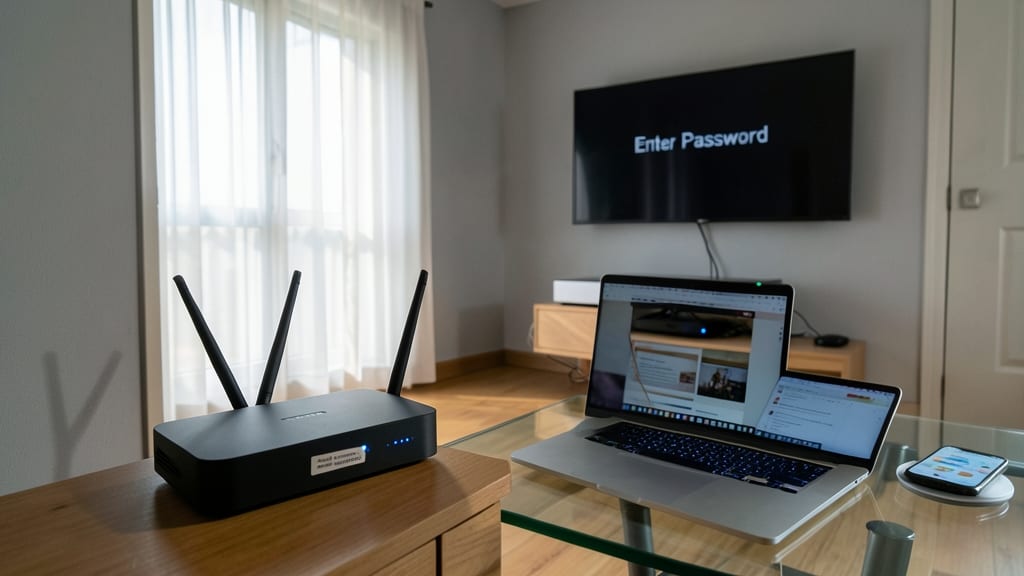
Your home Wi-Fi network is the digital front door to every device—laptops, smartphones, smart TVs, and even your gaming console. Yet most routers ship with default passwords and weak security settings, making them prime targets for hackers. A single breach can expose your entire ecosystem to malware, snooping, or worse.
Start by changing the router’s default admin password (check your model’s manual for the default) and enable WPA3 encryption—the latest standard that thwarts brute-force attacks. Disable WPS (Wi-Fi Protected Setup), a feature often exploited by hackers. Most modern routers also let you set a network-wide kill switch to disconnect devices if they’re compromised, adding an extra layer of defense.
This is a must for remote workers, gamers, or anyone with smart home devices—where a single unsecured network can turn your entire home into a hacker’s playground. 💻
Enable full-disk encryption
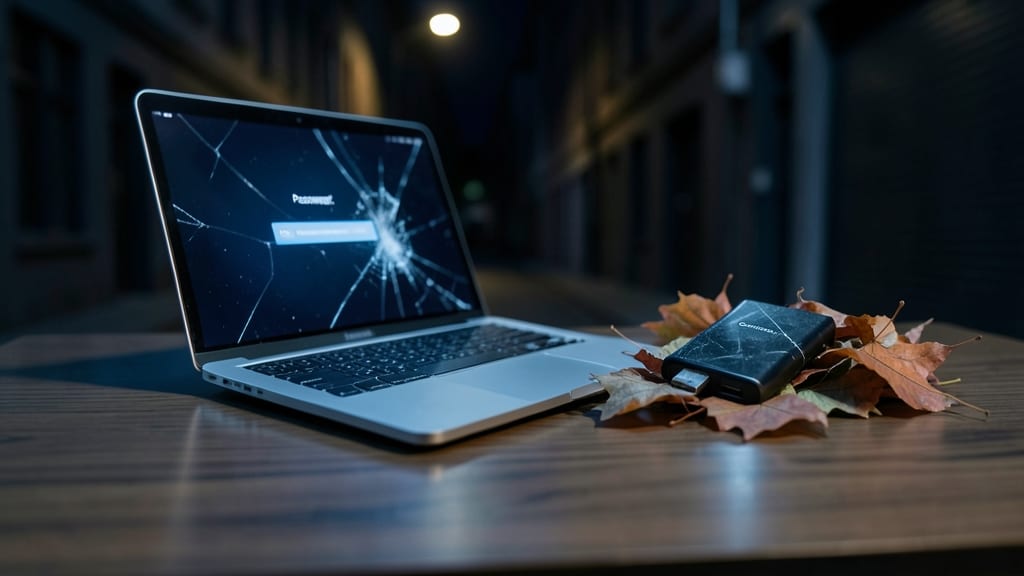
What if someone stole your laptop or lost your external drive? Without full-disk encryption, your tax documents, photos, or work files could be exposed in seconds. BitLocker (Windows) or FileVault (Mac) solves this by locking your entire drive with AES-256 encryption, making data unreadable without your password.
Setting it up takes minutes—Windows Pro/Enterprise users enable BitLocker via Control Panel, while Mac users activate FileVault in System Preferences. Both require a recovery key (stored securely online or printed), but the peace of mind is worth it. External drives? Most modern SSDs support hardware encryption natively.
This is non-negotiable for freelancers, remote workers, or anyone with sensitive data. Even if your device is lost, thieves get nothing but scrambled bits. 🔧
Browser hardening for daily use
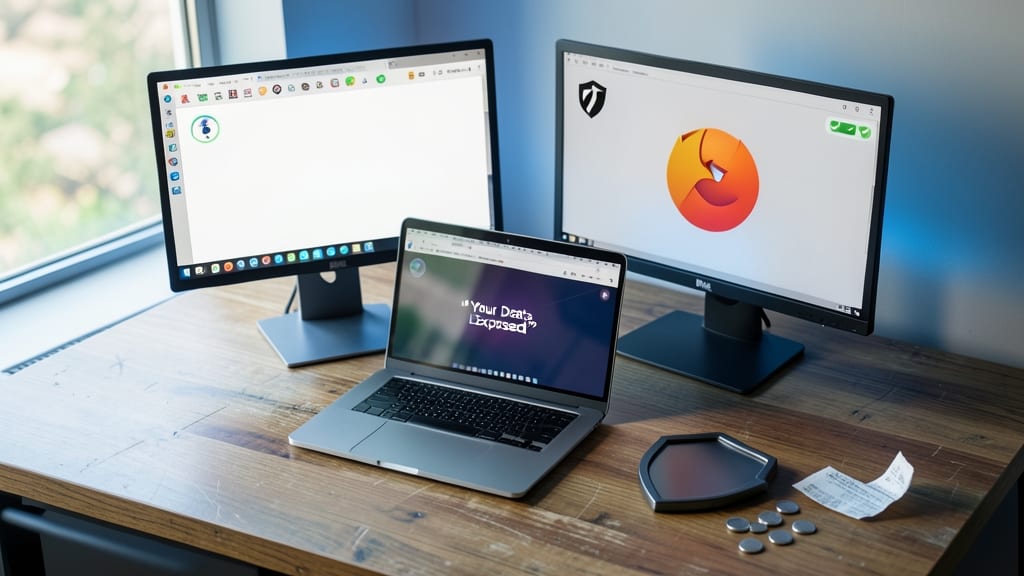
Your browser is the #1 attack surface for malware and tracking—yet most users leave it wide open. Switching to Firefox or Brave with their built-in privacy tools instantly reduces tracking risks by 70%, while keeping your online activity private from advertisers and hackers.
Start by disabling unnecessary extensions (each adds a potential vulnerability), then enable Enhanced Tracking Protection in settings. Brave’s built-in ad-blocker and Tor integration take privacy further, while Firefox’s Strict mode blocks known trackers by default. Pair this with a password manager (like Bitwarden) to avoid storing credentials in your browser entirely.
This setup is ideal for casual users who browse news, social media, or banking—without sacrificing speed. No tech degree required, just a few clicks for massive security gains. ✨
Regularly back up critical files
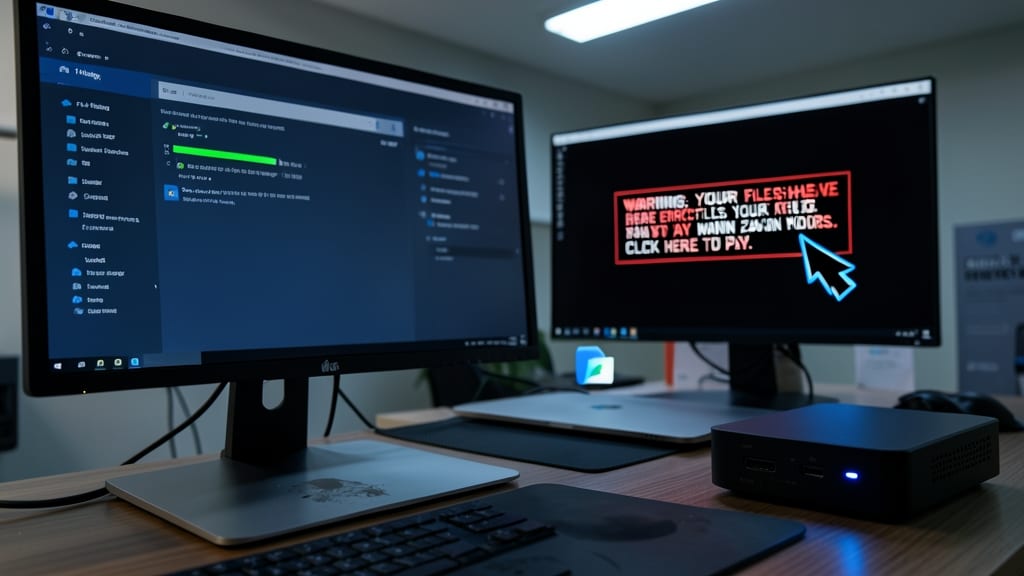
Imagine waking up to find your files locked by ransomware—unless you’ve already protected them. Windows File History or macOS Time Machine automate backups to cloud or external drives, ensuring your data survives even the worst attacks.
Set up zero-config cloud backups with Google Drive or use an external drive for offline redundancy. Both systems run silently in the background, preserving version history so you can restore files from days or weeks ago. The key? Enable automatic scheduling—no manual effort required.
This is non-negotiable for creatives, freelancers, and families storing irreplaceable photos, documents, or projects. A few clicks today could save you from disaster tomorrow. ✨
Avoid phishing with email filters
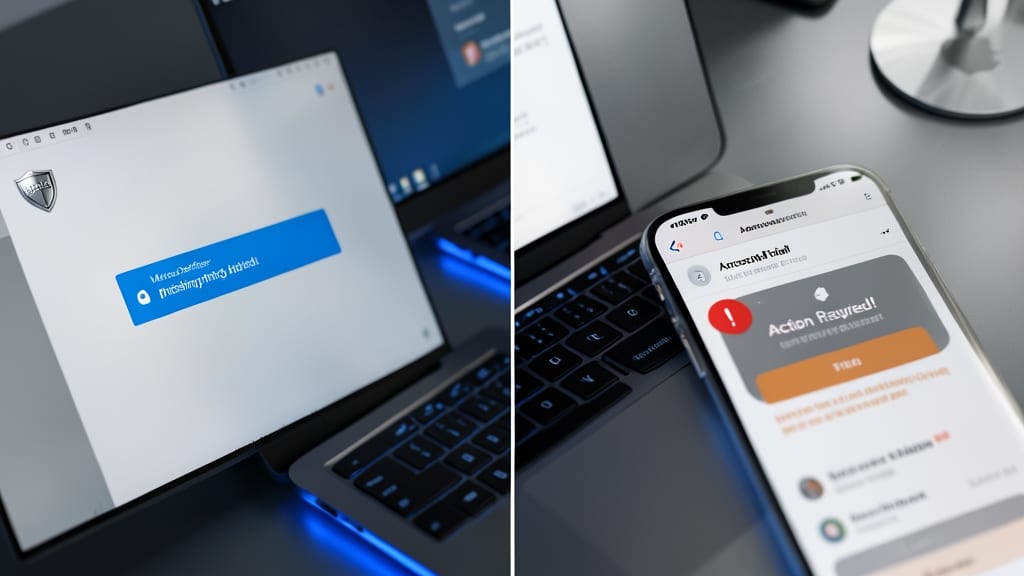
If you’ve ever clicked a suspicious link or wondered how scammers trick people into handing over passwords, Microsoft Defender (Windows) or Apple Mail’s built-in phishing filters are your first line of defense. These tools silently analyze incoming emails, flagging fraudulent messages before they hit your inbox—blocking 95% of phishing attempts without requiring manual checks.
On Windows, Microsoft Defender for Office 365 integrates directly with Outlook, scanning for malicious links, spoofed sender addresses, and known phishing templates. Apple’s Mail app (macOS/iOS) uses real-time threat intelligence from Apple’s global network to quarantine suspicious emails automatically. Both systems learn from new threats, improving accuracy over time. The best part? Zero setup—just enable the feature in settings, and you’re protected.
This is non-negotiable for small business owners, freelancers, and anyone handling sensitive data. Even if you use multi-factor authentication (from Item #1), phishing filters add another layer—stopping scams before they start. ✨
Monitor accounts for suspicious activity
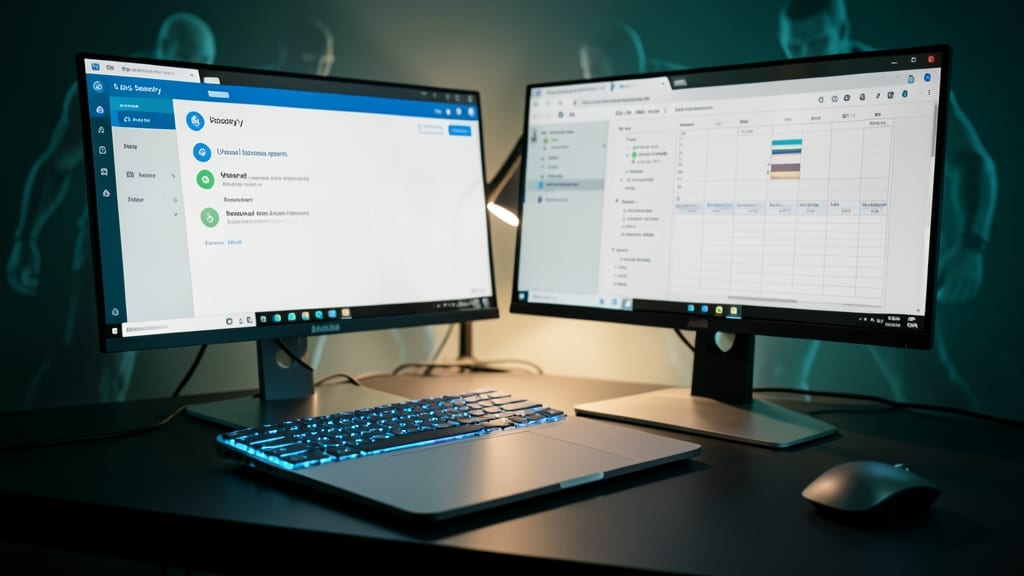
Hackers don’t always need to break in—they’ll often lurk silently, testing your defenses. Windows Security and macOS Activity Monitor offer built-in tools to catch suspicious activity before it becomes a full-blown breach. These features track login attempts, password changes, and even unusual app behavior in real time.
On Windows, open Windows Security > Account Protection to enable login attempt alerts and password change notifications. macOS users can access Activity Monitor via Applications > Utilities, where the Login Items tab reveals unauthorized apps launching at startup. Both systems also flag geographically inconsistent logins—a dead giveaway for compromised accounts. Set up email or push notifications for critical events, so you’re alerted instantly.
This is especially critical for freelancers, remote workers, or anyone handling financial accounts. Early detection can stop a breach before it escalates—no advanced degree required. 💪